Pages
Markdown pages served by the platform itself: rules, sponsors, FAQ, code of conduct, or a landing page for the event.
The page list
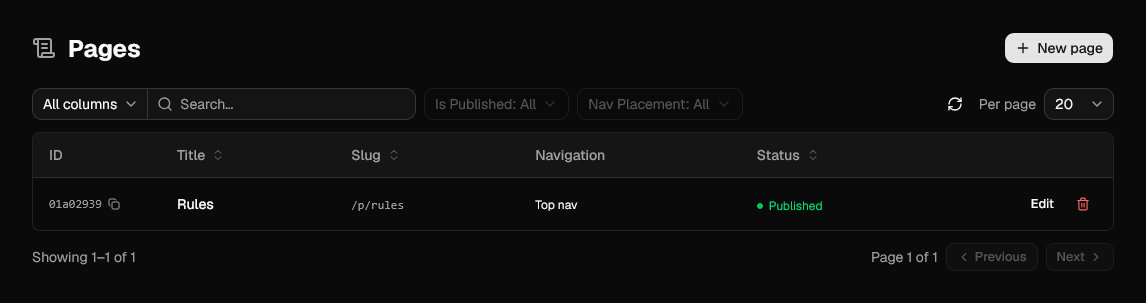
| Column | Meaning |
|---|---|
| Slug | URL the page is served at. |
| Navigation | Where the link appears: Top nav, Footer, or nowhere. |
| Status | Published pages are readable by players, Draft ones are not. |
Creating a page
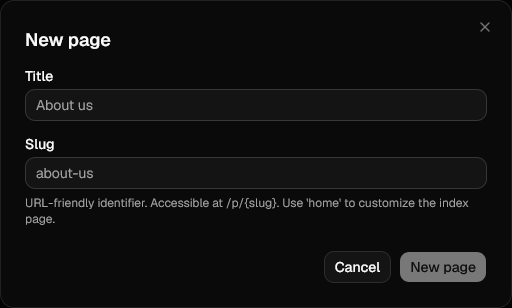
| Field | Notes |
|---|---|
| Title | Heading of the page and the label used in navigation. |
| Slug | Unique, URL-friendly identifier the page is served at: about-us gives /p/about-us. |
Pages are created as drafts with no content; you land in the editor next.
The home slug
A published page with the slug home replaces the default landing page of the
instance, and is shown to anonymous visitors too. Any other slug lives under /p/.
Editing a page
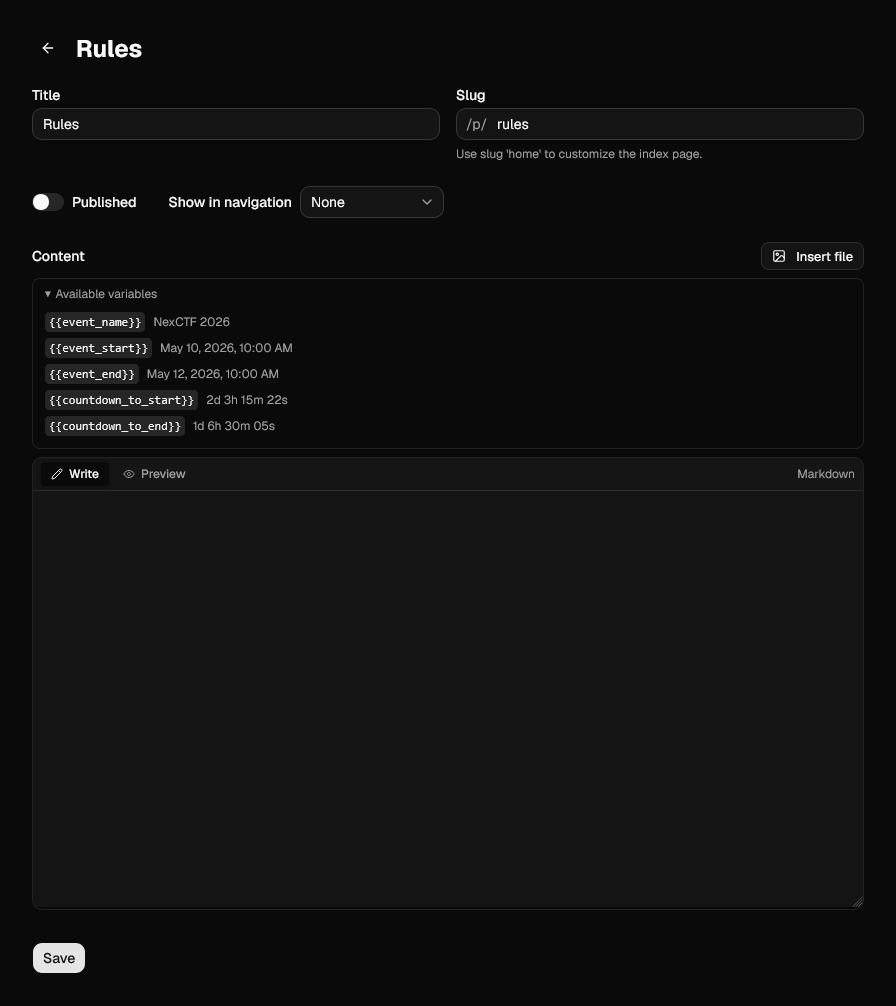
| Field | Notes |
|---|---|
| Title | Heading of the page and the label used in navigation. |
| Slug | Can be changed later, which changes the URL and breaks existing links. |
| Published | Off by default. An unpublished page returns a 404 to players. |
| Show in navigation | None, Top nav, or Footer. |
| Content | Markdown, with a live preview tab. |
Variables
The content supports a few placeholders, expanded when the page is rendered:
| Variable | Expands to |
|---|---|
{{event_name}} |
Event name from the Competition settings. |
{{event_start}} |
Start date and time. |
{{event_end}} |
End date and time. |
{{countdown_to_start}} |
Time left before the event opens, e.g. 2d 3h 15m 22s. |
{{countdown_to_end}} |
Time left before the event closes. |
An unknown name is left untouched in the output, so a stray {{typo}} shows up as-is on
the page.
What the Markdown supports
Every Markdown field in the platform, on pages and on challenges alike, is rendered by the same component, so what works here works in a challenge description too.
| GitHub-flavoured Markdown | Tables, task lists, strikethrough, autolinks. |
| Syntax highlighting | Fenced code blocks are highlighted by language. |
| Maths | $x^2$ inline and $$…$$ as a block, rendered with KaTeX. |
| Headings | Every heading is given an id, so #some-heading links into the page. |
| Links | External links open in a new tab; internal ones do not. |
A few link targets are turned into a player instead of a link, judged from the URL:
| Link to | Becomes |
|---|---|
A YouTube watch or youtu.be URL |
An embedded player, served from youtube-nocookie.com. |
.mp4, .webm, .mov |
An inline video player. |
.mp3, .wav, .flac, .ogg, .m4a |
An inline audio player. |
Write them as an ordinary link, on a line of their own:
Why the #call.mp3 at the end
Detection reads the file extension out of the URL, and a file served by ID does not have one. Appending the original filename as a fragment gives it something to match, which is exactly what the file picker below does for you.
Inserting a file
Insert file picks a file from the file store and drops the Markdown for it at the cursor: an image embed for images, a plain link otherwise, with the original filename appended as a fragment so audio and video render as players.
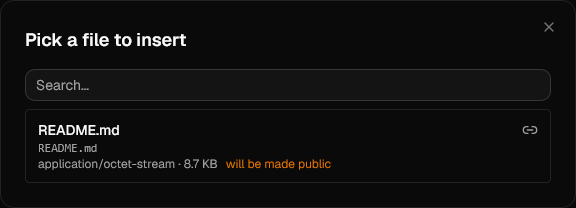
The picker is on every Markdown editor in the admin panel, not just this one: challenge and question descriptions, hints and writeups all have it.
Files already in the store are searchable by name. Upload adds a new one from the picker itself, which saves the round trip through Files when you are writing and realise you need an attachment. Anything uploaded this way is public from the start.
Files that are still private are marked will be made public in the picker.
Inserting makes the file public
A file that is not public yet is flipped to public when you insert it, since page content is served without authentication. Only insert files you are happy to expose to anyone with the link.